
Before installing SolidCAM on a target computer, confirm the following:
- The computer meets the SolidCAM System Requirements.
- Your Host CAD application is installed, up to date, and — ideally — matches the same year/version as the SolidCAM release you're installing.
- The SolidCAM installer and the Sentinel licensing service are permitted through any firewalls or antivirus software, per your organization's IT policy.
- You have administrative rights on the machine.
- All other applications are closed before you begin.
Warning: If antivirus protection must be disabled for the install, turn it back on as soon as the installation finishes.
Steps to Install SolidCAM Software
- Download the installer: SolidCAM Downloads
- In Windows File Explorer, go to
C:\Users\<YourUsername>\Downloadsand locate the installer file (e.g.,SolidCAM_2025_SP5HF2_English_x64.exe). - Right-click the
.exefile and choose Run as administrator.
Note: SolidCAM depends on the Microsoft Visual C++ Runtime libraries. If you're prompted, click Install to add the required Visual C++ Redistributable Package before continuing.
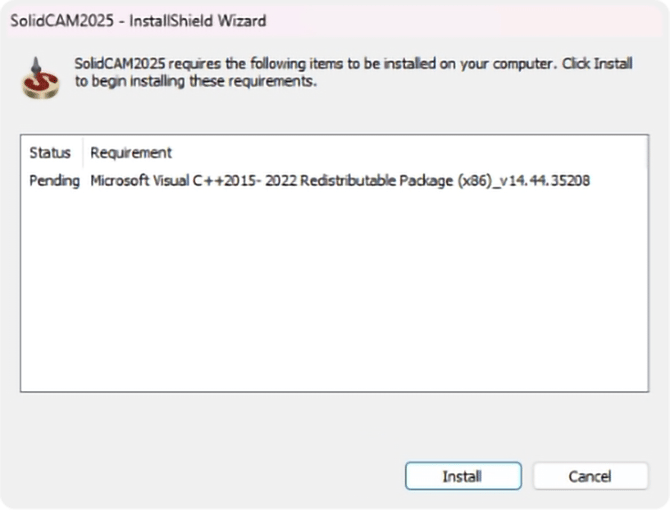
- Click Next to start the setup wizard.
- Accept the license agreement (check I accept the terms of the license agreement) and click Next.
- Choose an install location:
- Click Next to accept the default path, or
- Click Browse to pick a custom location, then click Next.
- Choose your preferred unit type (Metric or Inch) and click Next.
- Choose any additional features to install, then click Next.
Tip: Enable SolidShop Editor if you want SolidCAM for Operators along with the SolidShop CIMCO modules.
Tip: Enable SolidShop Editor if you want SolidCAM for Operators along with the SolidShop CIMCO modules.
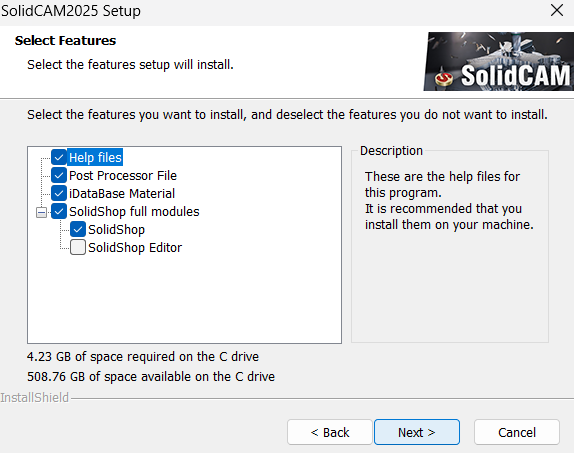
- Set the program folder:
- Click Next to keep the default name, or
- Enter a custom name in the Program Folder field, then click Next.
- The installer will then copy files and configure the installation automatically.
- When the License wizard opens, choose your license type:
Product key (provided at purchase)
Select Product key, click Next, and activate via Online Activation or Offline Activation.Licenses can be activated with or without an internet connection. See the Activating a License article for both methods. On first launch, you'll need to accept the SolidCAM License Agreement before using the software.
Network license
Select Network license and click Next.If the workstation can't auto-detect the license server, reach out to support.
- Optionally enable Participation in the Customer Experience Improvement Program, then click Finish.
- This program shares anonymous usage data to help improve the software — no IP addresses or personal information are collected.
- At this point, SolidCAM is installed.
Tip: Re-enable antivirus protection and restart the computer if needed.
- Launch your Host CAD application — SolidCAM is ready to use.