
If you already run a Sentinel HASP License Manager on your network for another vendor's software, you can add SolidCAM's license to that same server rather than standing up a separate license server. This article walks through installing SolidCAM's vendor driver, generating a fingerprint file, activating your license online, and applying it.
Before you start, you'll need:
- Administrator access to the existing license server
- Your SolidCAM network license product key (find it by signing in to the SolidCAM Customer Portal and copying your License Number)
- A few minutes of downtime is not required — this process does not interrupt the existing Sentinel service for other products
Step 1: Install the SolidCAM vendor driver
- Download haspvlib_42011.dll.
- Right-click the downloaded file, choose Properties, and click Unblock (if present), then click OK. (Windows flags downloaded DLLs by default — this step keeps Sentinel from refusing to load it.)
- Copy the file into:
C:\Program Files (x86)\Common Files\Aladdin Shared\HASP\ - Restart the Sentinel License Manager service (via
services.msc) so it picks up the new vendor driver.
Step 2: Generate a fingerprint (C2V) file
- Download the RUS_CADTECH.exe utility and run it.
- On the Collect Status Information tab, select Installation of a new protection key.
- Click Collect Information to generate a fingerprint.
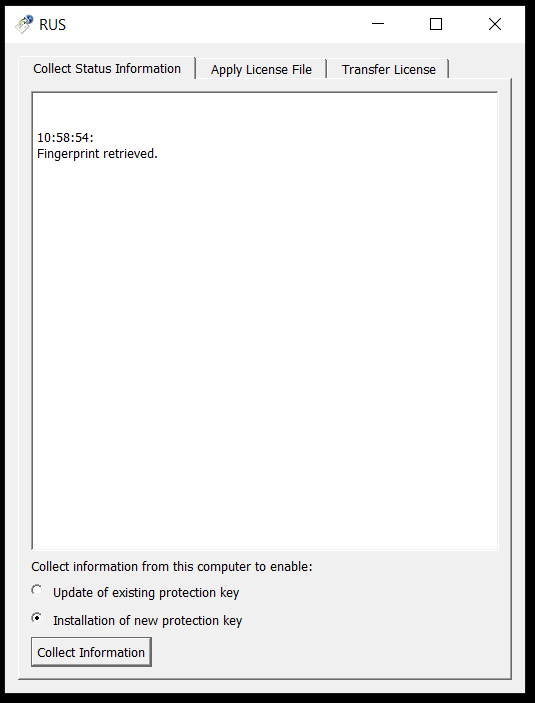
- Click Save and store the C2V file somewhere you can find it again.
Step 3: Activate your license online
- Go to the SolidCAM Activation Portal.
- Enter your network license product key and click Login.
- Click Offline Activation in the top right of the page.
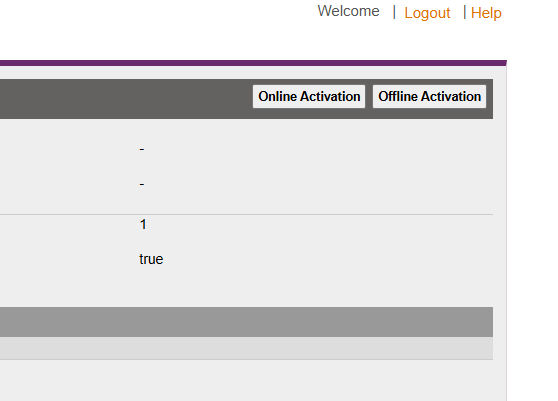
- Upload the C2V file you saved in Step 2.
- Click Generate.
- Download the resulting V2C file.
Step 4: Apply the license to your server
- Run RUS_CADTECH.exe again.
- Switch to the Apply License File tab.
- Click the … button and browse to the V2C file you downloaded.
- Click Apply Update.
Step 5: Verify
Open http://localhost:1947/ in a browser on the license server. You should see the SolidCAM license listed alongside your other Sentinel-managed products.
Troubleshooting: If the license doesn't appear, confirm the Sentinel HASP License Manager service restarted successfully after Step 1, and that no firewall rule is blocking port 1947 for client machines pulling the license over the network.