
Symptoms
You may notice one or more of the following issues:
- SOLIDWORKS parts, assemblies, or drawings only display generic icons
- No preview image appears in Windows Explorer
- Preview pane in the Open dialog is blank
- Thumbnail previews disappeared after a Windows or SOLIDWORKS update
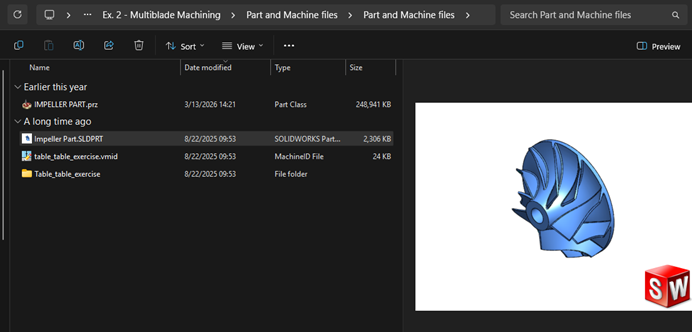
Solution 1: Enable Thumbnail Graphics in SOLIDWORKS
The first setting to verify is inside SOLIDWORKS itself.
Steps
- Open SOLIDWORKS
- Go to: Tools > Options > System Options > General
- Enable: Show thumbnail graphics in Windows Explorer
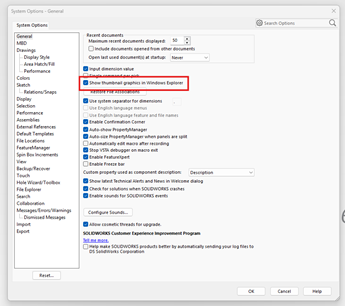
- Click OK
Note: Existing files may need to be opened and saved again in SOLIDWORKS before thumbnails are generated.
Solution 2: Check Windows File Explorer Options
Windows can be configured to hide thumbnails.
Steps
- Open Control Panel
- Select: File Explorer Options
- Open the View tab
- Ensure the following setting is checked: Show preview handlers in preview pane
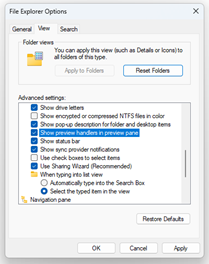
- Make sure Always show icons, never thumbnails is unchecked
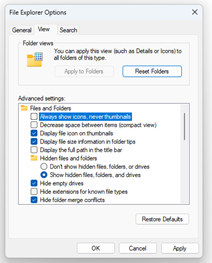
- Click Apply and then OK
These settings allow Windows to display SOLIDWORKS preview images correctly.
Solution 3: Enable Windows Thumbnail Performance Settings
Windows performance settings can disable thumbnails globally.
Steps
- Open the Windows search bar
- Search for: Adjust the appearance and performance of Windows
- Under Visual Effects, enable: Show thumbnails instead of icons
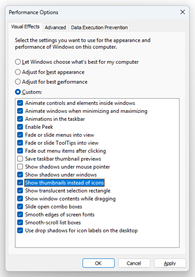
- Click Apply
Note: If Windows is set to Adjust for best performance, thumbnails may be disabled automatically.
Solution 4: Re-register SOLIDWORKS Thumbnail DLL Files
Missing or unregistered DLL files are one of the most common causes of thumbnail preview issues.
Important: You must run these steps with Local Administrator permissions.
Steps
- Open Command Prompt as Administrator
- Run the following commands one at a time:
- Restart Windows Explorer or reboot the computer
regsvr32 "C:\Program Files\Common Files\SOLIDWORKS Shared\swdocumentmgr.dll"
regsvr32 "C:\Program Files\Common Files\SOLIDWORKS Shared\sldwinshellextu.dll"
regsvr32 "C:\Program Files\SOLIDWORKS Corp\SOLIDWORKS\sldthumbnailprovider.dll"
Note: File locations may vary depending on your SOLIDWORKS version and installation path.
Solution 5: Restore SOLIDWORKS File Associations
Incorrect file associations can prevent previews from loading.
Steps
- Run SOLIDWORKS as Administrator
- Go to: Tools > Options > File Explorer
- Click: Restore File Associations
- Restart Windows Explorer or reboot the computer
Solution 6: Repair the SOLIDWORKS Installation
If none of the previous solutions work, repairing the installation may restore missing components.
Steps
- Open: Control Panel > Programs and Features
- Right-click your SOLIDWORKS installation
- Select: Change
- Choose: Repair your installation
- Follow the repair wizard
Additional Notes
- Thumbnail previews are only created after the file has been saved in SOLIDWORKS
- Older files may need to be reopened and resaved
- Some Windows updates can reset thumbnail-related settings
- Restarting Windows Explorer can refresh previews without a full reboot